
Canon PIXMA TR4720
3.9Editor score
Wireless 4-in-1 functionality
Auto document feeder included
Compact design for small spaces
This guide compares the top 10 all in one printer for MacBook Air options, analyzing speed, connectivity, ink systems, and features to help you choose the
Finding the right all in one printer for MacBook Air can be challenging given the variety of wireless options available today. You need reliable connectivity, high-quality output, and seamless integration with your Apple ecosystem to ensure smooth daily operations.
We have carefully evaluated ten leading models based on their performance, ease of use, and compatibility with macOS. Our analysis focuses on key features like AirPrint support, scanning capabilities, and overall value for home office users.
Each pick below highlights specific strengths and weaknesses to help you make an informed decision. Keep in mind that prices and availability can change frequently, so always check the latest details before purchasing your new device.
3.9Editor score

4.3Editor score

4.3Editor score
The following table provides a side-by-side comparison of the top all in one printer for MacBook Air models available this month. Review key specifications to find the best fit for your specific workflow needs.
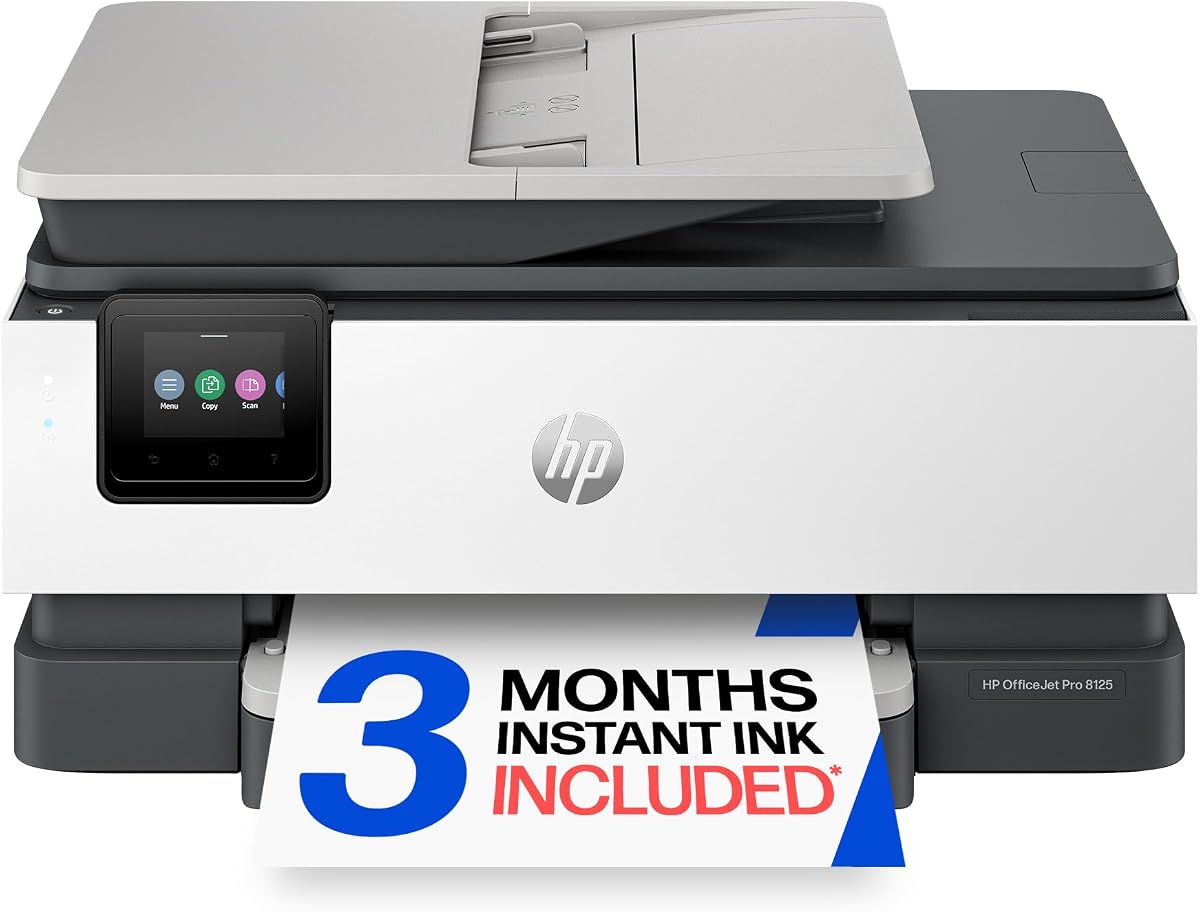



The HP OfficeJet Pro 8125 stands out as a top choice for home office users seeking speed and reliability. With its robust feature set and strong AirPrint compatibility, it handles daily tasks efficiently while maintaining professional quality outputs.
We may earn a commission when you buy through this link, at no additional cost to you.
Its standout strength lies in the dual-band Wi-Fi which ensures stable connections without frequent dropouts. The HP AI capability helps optimize print formatting automatically, saving paper and reducing waste during document preparation tasks.
While the initial cost includes a useful Instant Ink trial, you must subscribe afterward to maintain savings which can add to ongoing costs. Additionally, strict cartridge chip requirements limit third-party ink options significantly for long-term ownership.
This printer is ideal for professionals who need consistent performance and advanced features in a home environment. If you value speed and smart connectivity over lower ink costs, this model offers a compelling package.
The dual-band Wi-Fi ensures you stay connected even when other devices congest the network.
HP AI removes unwanted content automatically ensuring your printed documents look exactly as intended.
We may earn a commission when you buy through this link, at no additional cost to you.
The Epson EcoTank ET-2903 redefines home printing with its innovative supertank system that eliminates frequent cartridge changes. It offers exceptional value for high-volume users who prioritize long-term savings over initial investment costs.
We may earn a commission when you buy through this link, at no additional cost to you.
Its refillable tanks and keyed bottles make refilling mess-free and intuitive reducing the risk of spills during maintenance. The Heat-Free technology ensures the printhead lasts the life of the printer providing consistent reliability.
Printing speed is slower than some laser competitors which might be noticeable for very large jobs but acceptable for typical office tasks. The higher initial price point is offset quickly by the savings on ink purchases.
Buy this model if you print frequently and want to avoid running out of ink unexpectedly. It is the perfect solution for photographers and document-heavy users who demand quality and sustainability.
Join millions who have reduced plastic waste by switching to this cartridge-free supertank system.
Enhanced mobile printing via AirPrint and Mopria ensures seamless operation from any device.
We may earn a commission when you buy through this link, at no additional cost to you.
The Canon PIXMA TR7120 delivers impressive performance for its budget-friendly price making it ideal for students and home workers. Its hybrid ink system ensures sharp text alongside vibrant colors for diverse printing needs.
We may earn a commission when you buy through this link, at no additional cost to you.
Dual-band Wi-Fi connectivity ensures stable performance even in busy households with many connected devices. The intuitive OLED display helps you monitor status quickly without needing to check a computer screen.
While it lacks the massive capacity of tank systems it offers enough speed for average daily use without slowing down workflow. The compact design fits easily into tight spaces without sacrificing essential features.
Choose this printer if you want a reliable all-in-one that balances cost and functionality effectively. It is the best value option for users needing wireless flexibility and solid quality.
Get started quickly with easy setup options for your smartphone or computer immediately.
Print documents and photos up to 8.5 by 11 inches with or without borders easily.
We may earn a commission when you buy through this link, at no additional cost to you.
The Canon PIXMA TS6520 offers a sleek design that blends seamlessly into modern workspaces. It focuses on essential features like duplex printing and quality output while maintaining a small physical footprint.
We may earn a commission when you buy through this link, at no additional cost to you.
Users appreciate the OLED display which provides clear visibility of ink levels and status updates at a glance. This model excels in environments where space is limited but quality cannot be compromised.
The lack of an auto document feeder means manual scanning for multi-page documents which adds time to your workflow. Connectivity is solid but limited to standard Wi-Fi without additional advanced networking features.
This is an excellent choice for individuals who need occasional printing in a small home office. Prioritize this if design and basic functionality matter most to your specific setup.
Designed to fit seamlessly into any workspace without sacrificing functionality or quality.
Experience impressive print quality for both documents and photos with its hybrid ink system.
We may earn a commission when you buy through this link, at no additional cost to you.
The Brother Work Smart 1360 is designed for everyday home office tasks including schoolwork and reports. Its robust paper tray and cloud connectivity make it a practical choice for multitasking environments.
We may earn a commission when you buy through this link, at no additional cost to you.
Integration with popular cloud apps allows seamless printing from stored documents without needing a physical computer connection. The mobile app provides convenient control over printing and scanning tasks from anywhere.
Color printing is slower compared to black text output which might be a consideration for graphic-heavy documents. The small ADF requires multiple passes for large scans which can slow down document processing.
Ideal for budget-conscious users needing reliable connectivity and decent speed for mixed workloads. It offers solid value if you rely heavily on cloud services for daily printing needs.
Print and scan to popular apps like Google Drive and Dropbox directly from the printer.
The 150-sheet tray reduces refills ensuring you stay productive throughout the workday.
We may earn a commission when you buy through this link, at no additional cost to you.
The HP Envy 6155 combines style and performance for homes needing high-quality color prints and easy scanning. Its True-to-Screen technology ensures photos look vibrant just as they do on your device.
We may earn a commission when you buy through this link, at no additional cost to you.
The 2.4-inch touchscreen offers smooth navigation making it easy to adjust settings or scan documents without a computer. AI features help optimize layouts saving time and reducing paper waste during printing.
Sustainability is a key focus with recycled plastic used in its construction reducing environmental impact significantly. However speed is moderate which may not suit users needing rapid bulk document output daily.
This model fits users who value aesthetic design and reliable wireless performance for mixed tasks. If you prioritize photo quality and modern features this printer delivers a balanced experience.
Print documents and photos that look as vibrant as they do on your screen.
Dual-band Wi-Fi automatically detects and resolves connection issues for seamless printing.
We may earn a commission when you buy through this link, at no additional cost to you.
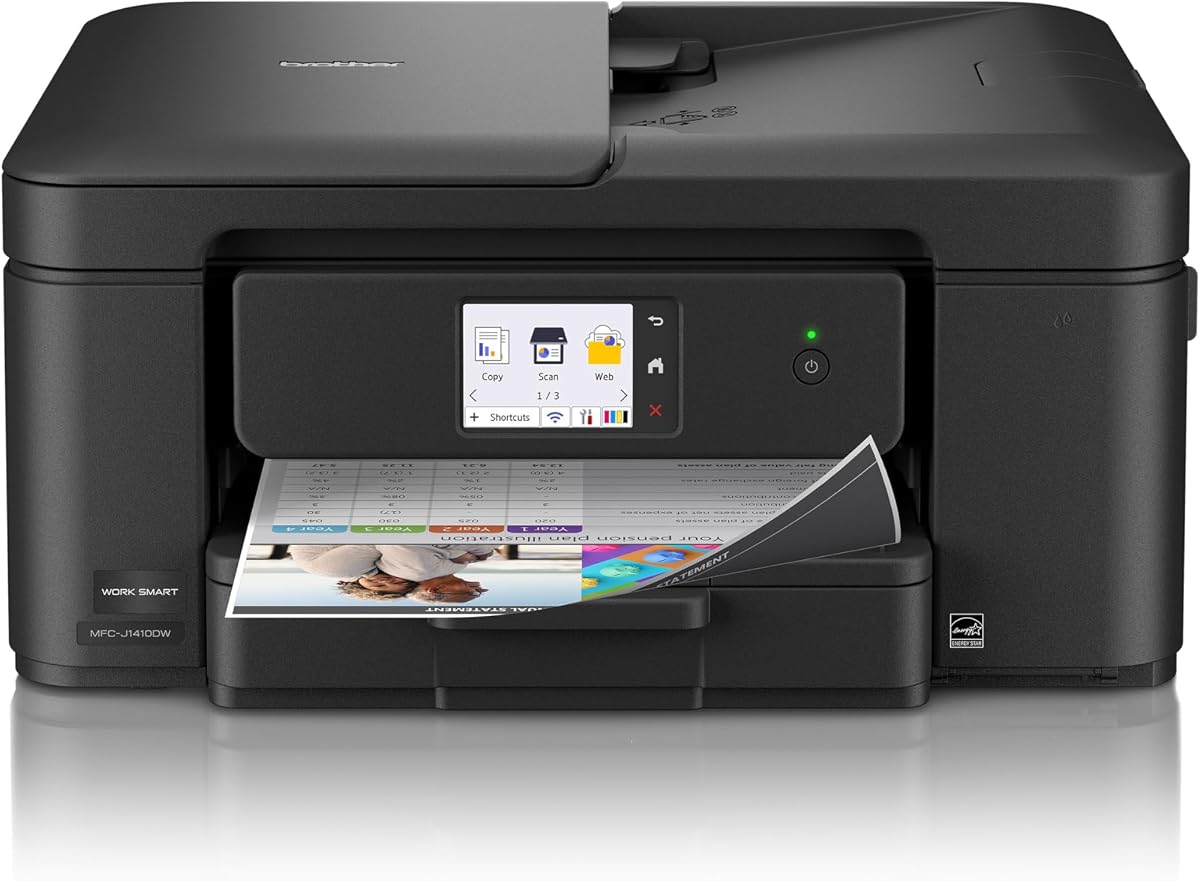
The Brother Work Smart 1410 features a large 2.7-inch touchscreen that simplifies operation for users of all skill levels. It integrates well with cloud services allowing easy access to stored documents for printing.
We may earn a commission when you buy through this link, at no additional cost to you.
Users appreciate the seamless cloud integration which allows printing directly from drives without needing a computer connected. The touchscreen interface is responsive and provides clear menus for managing print jobs efficiently.
Black printing is fast suitable for document-heavy workflows while color remains adequate for casual needs. The refresh subscription trial may lead to extra costs later if you do not monitor usage carefully.
Buy this if you need a modern interface and cloud capabilities for home office work. It offers a good balance of speed and usability for varied daily tasks.
Print from and scan to popular cloud apps directly from the clear color display.
Automatic duplex printing saves paper while the 150-sheet tray reduces refills.
We may earn a commission when you buy through this link, at no additional cost to you.
The HP OfficeJet 3830 offers voice control integration making it convenient for users who prefer smart home features. Its fax capability adds versatility for offices that still require traditional document transmission methods.
We may earn a commission when you buy through this link, at no additional cost to you.
Alexa integration allows you to discover and check printer status using voice commands which streamlines workflow significantly. The quiet mode helps keep noise levels down during early morning or late night tasks.
Print speeds are slower than newer models which may be a drawback for high-volume users needing quick results. This model serves best as a secondary printer for specific tasks like faxing or scanning.
Choose this for legacy support and smart home integration if you already rely on Alexa for office tasks. It remains a solid choice for budget-conscious users needing fax capabilities.
Just say Alexa discover my printer to quickly find and connect to your device.
Print from anywhere using your smartphone or tablet with the HP ePrint app.
We may earn a commission when you buy through this link, at no additional cost to you.
The Canon PIXMA TR8620a stands out for its robust paper capacity and advanced connectivity options including a Micro SD slot. It is designed for users needing frequent printing without constant refilling.
We may earn a commission when you buy through this link, at no additional cost to you.
Alexa smart reorders ensure you never run out of ink by notifying you when levels are low and placing orders automatically. The fast print speed allows for efficient processing of large document batches quickly.
Its larger physical size might be a consideration for smaller workspaces but it offers superior functionality for heavy users. The fax feature remains valuable for businesses needing secure document transmission capabilities.
Select this model if you require high capacity and voice integration for an active home office. It balances performance and connectivity features effectively for demanding users.
Alexa can place smart reorders automatically when ink runs low without needing a subscription.
The 200 sheet capacity ensures you stay productive during busy work sessions.
We may earn a commission when you buy through this link, at no additional cost to you.
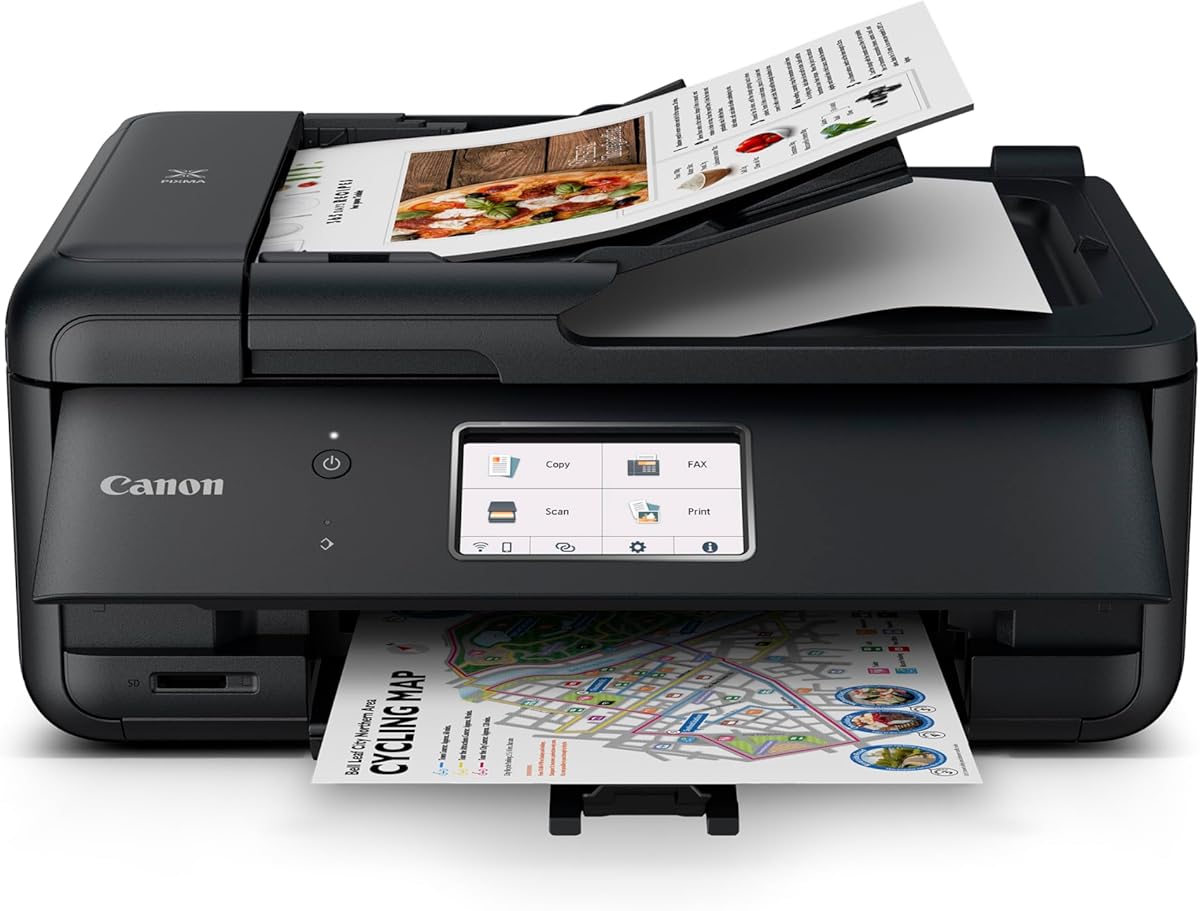
The Canon PIXMA TR4720 offers essential functionality at an entry-level price point making it accessible for basic users. It includes fax and scanning capabilities which are often missing in similarly priced competitors.
We may earn a commission when you buy through this link, at no additional cost to you.
Alexa integration allows for smart monitoring of ink levels ensuring you never face unexpected shortages unexpectedly. The compact design saves space on your desk while still providing ADF convenience for scanning.
Print speeds are slower which means this model is better suited for light use than heavy daily printing. The paper capacity is modest so frequent refills may be needed for larger jobs.
Buy this if you need a budget-friendly all-in-one with fax capabilities for occasional use. It is the perfect starter printer for those needing basic connectivity.
Designed to fit seamlessly into any workspace without sacrificing functionality or utility.
Receive Alexa notifications when running low on ink for smart reorder alerts.
We may earn a commission when you buy through this link, at no additional cost to you.
Selecting the right printer requires evaluating several factors to ensure compatibility and performance with your Mac setup.
Ensure the printer supports AirPrint and dual-band Wi-Fi for seamless communication with your MacBook without additional drivers. This native support simplifies setup and allows printing directly from macOS applications.
Prioritize models with robust wireless options to avoid connection drops when printing from multiple devices.
Look for printers offering at least 10 ppm for black documents to keep your workflow efficient. High-resolution output is essential if you frequently print photos or detailed presentations.
Balance speed with quality needs based on whether your usage focuses on text or graphics.
Consider whether a cartridge or tank system suits your volume better as tank models offer lower long-term costs. Evaluate the cost of replacement supplies and any subscription requirements before buying.
Choose a tank system if you print hundreds of pages monthly to save significantly on ink.
An automatic document feeder is crucial for scanning multi-page documents quickly without manual page turns. A larger paper tray reduces how often you need to refill paper during busy periods.
Select models with ADFs if you regularly process contracts or reports to improve efficiency.
Touchscreen interfaces provide intuitive navigation for adjusting settings or scanning without opening a computer. Larger screens with clear menus make daily operations more comfortable for all users.
Opt for a printer with a display if you prefer managing tasks directly on the device.
Modern printers often include cloud connectivity and voice control for enhanced convenience and automation. Mobile apps should support scanning to cloud services directly from your device.
Check for Alexa or Siri support if you want voice commands to manage printing tasks easily.
Measure your available desk space to ensure the printer fits comfortably without obstructing other items. Compact designs are vital for small home offices or shared workspaces.
Choose a smaller model if desk real estate is limited to maintain a tidy environment.
Review the warranty period and available support channels to protect your investment against defects. Reliable manufacturer support can resolve technical issues faster when setup problems occur.
Prioritize brands with strong reputations for customer service and accessible technical resources.
Start by connecting your printer to the same Wi-Fi network as your MacBook and downloading necessary software. Follow the setup wizard on your screen to complete configuration quickly.
Regularly run cleaning cycles from the menu to prevent nozzle clogs and maintain print quality. Keep the printer covered when not in use to protect it from dust and debris.
Use genuine or compatible ink recommended for your model to avoid hardware damage and ensure reliable output. Update firmware periodically to fix bugs and improve security features.
Most modern printers support AirPrint and operate without installing drivers on macOS. This allows you to print directly from any app that supports the AirPrint protocol immediately.
Models with an automatic document feeder (ADF) can scan multiple pages in one go efficiently. Without an ADF you must manually scan each page individually one at a time.
Not all models require subscriptions but some offer trials that convert to paid plans automatically. Check the specific terms before signing up to avoid unexpected monthly charges.
The Epson EcoTank ET-2903 is best for high-volume photo printing due to its tank system and high resolution. It offers lower costs per page for large projects compared to standard cartridges.
Yes most all-in-one printers work with Windows PC and mobile devices via standard Wi-Fi. Ensure you download the appropriate app or driver for non-Apple systems.
Cartridge replacement depends on usage volume but typically occurs every few months for average users. Tank systems last much longer reducing the frequency of replacements significantly.
The Canon PIXMA TS6520 is ideal for compact desks due to its small footprint and stylish design. It offers essential features without taking up too much valuable workspace.
Several models support Alexa voice commands for status checks and smart reorders conveniently. Check the product description to confirm specific voice control capabilities.
Choosing the right printer involves balancing speed connectivity and ink costs to match your specific workflow. Our top picks include the HP OfficeJet Pro 8125 for performance and the Epson EcoTank ET-2903 for long-term savings.
Prioritize features that matter most to you such as AirPrint support or automatic document feeding for efficiency. Assess your monthly print volume to decide between tank and cartridge systems effectively.
Prices and availability change so verify current details before finalizing your purchase decision. Regularly check for firmware updates to keep your device running smoothly.