
Philips 241V8LB
4.6Editor score
Crisp Full HD visuals
Incredible contrast ratios
Virtually bezel-free design
Finding the right display for your MacBook Pro can transform your workflow significantly. You need a monitor that matches the color fidelity and design aesthetic of your laptop while offering reliable connectivity options for seamless daily use.
We evaluated ten top-rated monitors based on resolution, color gamut coverage, and USB-C power delivery capabilities. Each model was assessed for its ability to integrate smoothly with macOS features and provide ergonomic comfort during long working sessions.
This guide highlights key strengths and trade-offs for every pick to help you decide quickly. Prices and availability change frequently so please verify the latest offers on the product pages before making your final purchasing decision.
4.6Editor score

4.5Editor score
5.0Editor score
As an Amazon Associate we earn from qualifying purchases.
Compare all ten selected monitors side by side to find the perfect match for your setup. This table highlights key specifications like resolution, refresh rate, and connectivity options to streamline your decision process.



This LG Ultrafine monitor delivers stunning 4K visuals with high color fidelity suitable for creative work. It scores a 4.5 rating from users who appreciate its seamless integration with macOS systems.
We may earn a commission when you buy through this link, at no additional cost to you.
The 95% DCI-P3 coverage ensures vibrant and true-to-life colors for designers. The 90W USB-C connection charges your MacBook while handling video and data transfer through one cable.
Some users note that the built-in speakers lack depth compared to external options. The stand is adjustable but may not offer pivot on all configurations depending on the specific model variation.
Ideal for professionals needing reliable color and connectivity. This monitor balances performance and price effectively making it a top recommendation for daily creative use.
The wide color gamut makes photos and videos look accurate for professional editing tasks.
Connect your MacBook with one cable to reduce clutter and keep your desk organized.
We may earn a commission when you buy through this link, at no additional cost to you.
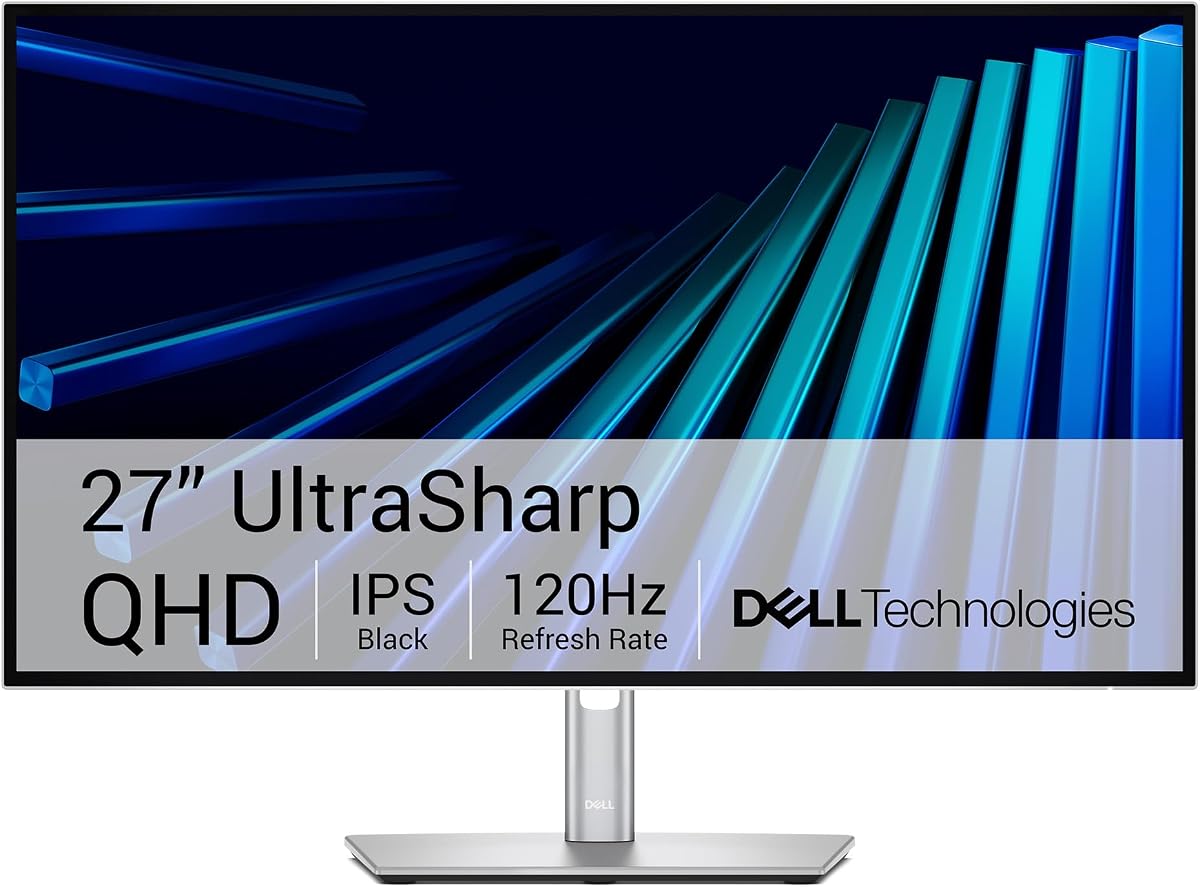
The Dell UltraSharp U2726DER stands out with factory-calibrated color accuracy and Thunderbolt support. Users give it a perfect 5.0 rating for its premium build and Mac compatibility.
We may earn a commission when you buy through this link, at no additional cost to you.
It covers 98% of the Display P3 spectrum ensuring your designs look exactly as intended. The built-in KVM lets you control multiple devices with one keyboard and mouse setup.
While the price is higher than average it delivers professional grade performance and reliability. The QHD resolution is crisp though some may prefer 4K for very fine detail work.
This monitor is ideal for professionals who need top-tier color and connectivity. It offers a refined experience that justifies the investment for serious Mac users.
High-speed data and power delivery ensure fast file transfers and efficient charging.
Switch between machines effortlessly without needing extra peripherals on your desk.
We may earn a commission when you buy through this link, at no additional cost to you.
This Philips monitor offers great value with a crisp Full HD display and high contrast. It holds a 4.6 rating from users who love its design and budget-friendly price.
We may earn a commission when you buy through this link, at no additional cost to you.
The VA panel produces deep blacks and bright whites making text sharp and videos engaging. The three-sided bezel design creates a seamless look especially when used in multi-monitor setups.
It lacks USB-C power delivery so you will need an adapter for your MacBook. The resolution is standard FHD which is fine for office work but not for detailed creative tasks.
Perfect for students or casual users needing an extra screen without breaking the bank. It delivers solid performance and a clean aesthetic for basic daily tasks.
Get reliable performance and a modern look for a fraction of the cost of 4K options.
The narrow bezels allow seamless tiling if you want to expand your workspace later.
We may earn a commission when you buy through this link, at no additional cost to you.
The Dell S2725QC combines 4K resolution with a 120Hz refresh rate for smooth visuals. It earns a 4.4 rating for its color accuracy and comfortable viewing features.
We may earn a commission when you buy through this link, at no additional cost to you.
IPS technology ensures consistent colors from different angles while ComfortView reduces eye strain. The 65W USB-C connection charges most MacBook models while delivering crisp 4K video.
Some users wish the power delivery was higher for max performance laptops. The built-in audio is decent but external speakers are preferred for immersive entertainment experiences.
This monitor suits both work and play with its high refresh rate and vibrant colors. It is a strong choice for those needing fast motion handling on a budget.
Enjoy fluid scrolling and video playback with the higher refresh rate display.
Reduced blue light helps maintain visual health during long daily sessions.
We may earn a commission when you buy through this link, at no additional cost to you.
The BenQ MA270UP is tailored for Mac users with special color matching features. It scores a 4.3 rating for its deep integration with macOS settings and controls.
We may earn a commission when you buy through this link, at no additional cost to you.
It offers 90W power delivery through dual USB-C ports ensuring your laptop stays charged. You can control brightness and volume directly from your MacBook keyboard without menus.
The premium price is a consideration for those on a tighter budget. The stand is adjustable but does not support pivot which might limit vertical workflow options.
This monitor is a great fit for Mac devotees wanting native compatibility. It provides a seamless experience with color and controls that feel at home on macOS.
Adjust display settings using your existing keyboard shortcuts for a fluid workflow.
Dual USB-C ports offer flexibility for connecting devices and charging simultaneously.
We may earn a commission when you buy through this link, at no additional cost to you.
This Dell Plus monitor offers a fast 144Hz refresh rate ideal for motion clarity. It has a 4.7 rating from users who value its smoothness and eye comfort features.
We may earn a commission when you buy through this link, at no additional cost to you.
The ergonomic stand allows pivot and height adjustment for optimal viewing positions. The certified eye comfort tech reduces harmful blue light while maintaining image quality.
It lacks USB-C connectivity so you may need adapters for MacBook connection. The FHD resolution is standard but sufficient for general office work and media consumption.
Best for users prioritizing speed and comfort over high resolution. It provides a stable and healthy viewing experience for long work days.
Fast refresh rates reduce blur in dynamic content for smoother interactions.
Adjust tilt swivel and pivot to fit your exact posture and desk layout.
We may earn a commission when you buy through this link, at no additional cost to you.
The LG 27US500-W brings 4K clarity with a borderless design for modern spaces. It achieves a 4.4 rating for its crisp visuals and flexible viewing angles.
We may earn a commission when you buy through this link, at no additional cost to you.
IPS technology ensures consistent color across wide viewing angles. The borderless screen makes it ideal for multi-monitor setups where edge distraction matters.
Connectivity is standard with HDMI and DisplayPort but lacks robust USB-C hubs. You will need to manage power and data separately for your MacBook.
This monitor is a solid choice for clean aesthetics and sharp 4K visuals. It fits well in contemporary workstations focused on simplicity and clarity.
The frameless design draws your eye into the content for better focus.
IPS panel maintains accurate color even when viewed from the side.
We may earn a commission when you buy through this link, at no additional cost to you.
This BenQ monitor is Mac Ready with factory calibration for accurate color. It holds a 4.5 rating for its design-focused features and uniform brightness.
We may earn a commission when you buy through this link, at no additional cost to you.
The Nano Matte panel reduces glare while preserving color accuracy. 90W USB-C ensures reliable charging and data for your MacBook devices.
The matte finish can look slightly grainy up close for some users. The QHD resolution is sharp but 4K users may prefer higher pixel density.
Perfect for graphic designers needing reliable color and anti-glare protection. It supports daisy chaining which helps when building larger screen setups.
Nano Matte technology minimizes reflections in bright office environments.
Factory calibration ensures accurate hues straight out of the box.
We may earn a commission when you buy through this link, at no additional cost to you.
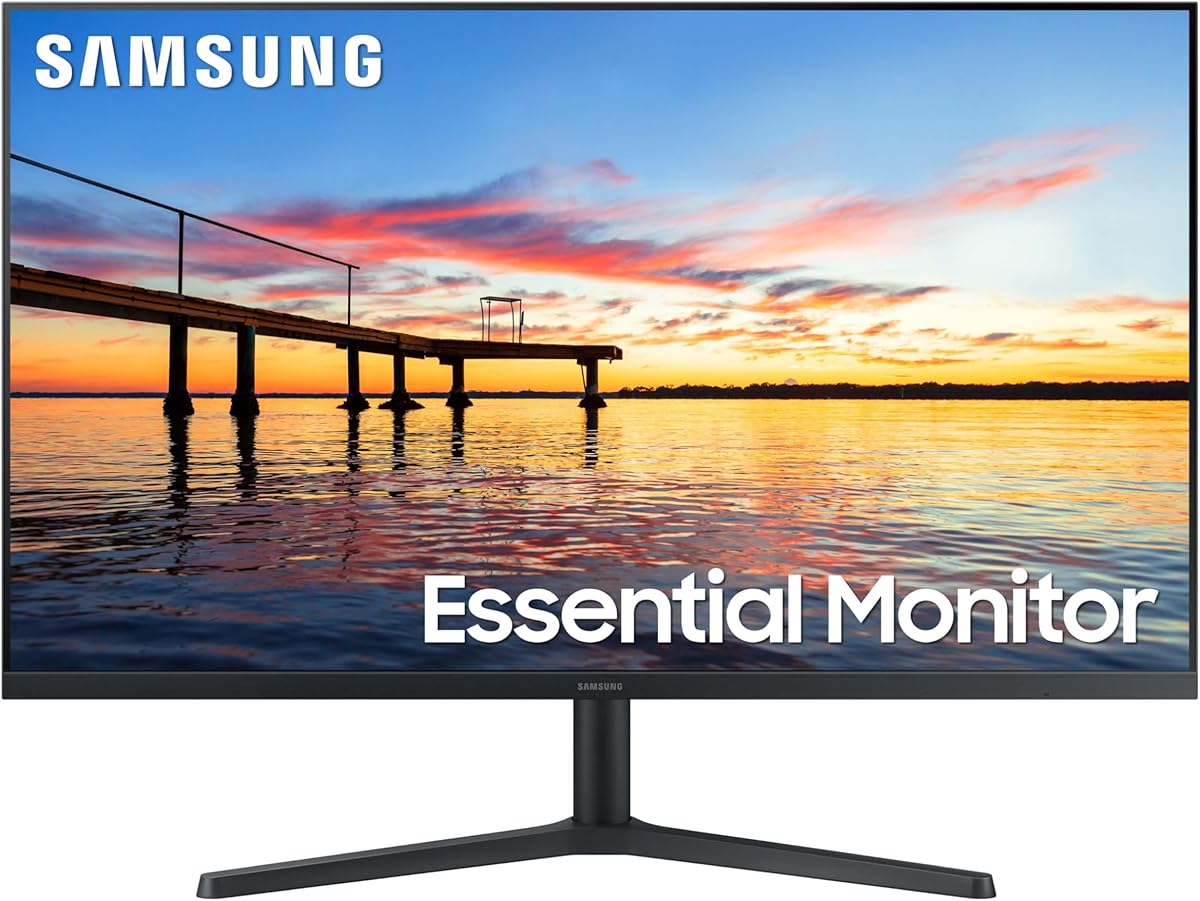
The Samsung 32-inch monitor provides a large canvas for multitasking. It has a 4.5 rating for its spacious display and eye care technologies.
We may earn a commission when you buy through this link, at no additional cost to you.
AMD FreeSync ensures smooth visuals without tearing during video playback. The borderless design enhances the immersive feel of the large screen.
It lacks USB-C so you must connect via HDMI or DisplayPort with adapters. The refresh rate is standard which is fine for office work but not for games.
This monitor suits those needing extra screen real estate for tasks. It offers a comfortable viewing experience for extended daily work sessions.
The larger screen allows more windows and data to be visible at once.
Sync tech keeps frames steady for uninterrupted media viewing.
We may earn a commission when you buy through this link, at no additional cost to you.
This LG monitor offers QHD resolution with a 100Hz refresh rate. It holds a 4.3 rating for its vivid visuals and reading comfort features.
We may earn a commission when you buy through this link, at no additional cost to you.
The USB-C port provides 15W power which is enough for peripherals but not charging. HDR10 adds depth to images making video playback more engaging.
Low power means you still need your main charger for the laptop. The stand is slim but does not offer full height adjustment options.
Ideal for users needing QHD clarity at a budget-friendly price. It provides a solid balance of features for general use and light media.
IPS tech and HDR10 bring depth and contrast to your content.
Reader Mode reduces blue light to ease fatigue during long reads.
We may earn a commission when you buy through this link, at no additional cost to you.
Selecting the right monitor involves balancing resolution color accuracy and connectivity. This guide breaks down key factors to help you match a display to your specific workflow needs.
Resolution determines how sharp text and images appear. For MacBook Pro users 4K UHD or QHD resolutions are often preferred to match Retina scaling. Screen size should match your desk space and viewing distance for comfort.
Choose 4K for creative work and QHD for general office tasks. Ensure the size fits comfortably on your desk without causing neck strain.
Color accuracy is vital for designers and photographers. Look for monitors covering 95% or more of DCI-P3 and sRGB for true-to-life results. Factory calibration helps ensure out-of-box accuracy.
Prioritize high gamut coverage if you do creative work. For casual use standard sRGB is usually sufficient for daily tasks.
USB-C allows one-cable connectivity for video and charging. Delivery up to 65W or 90W is ideal for MacBook Pro laptops to avoid carrying separate chargers. This simplifies desk setup and reduces cable clutter.
Check the wattage to ensure it meets your laptop needs. Higher wattage ensures you can charge while working without draining the battery.
Refresh rate affects how smooth motion appears on screen. A 120Hz rate or higher is great for scrolling and video. Low response times reduce blur during fast motion.
Focus on 60Hz minimum for office work but consider higher rates for smoother experiences. Lower response times help with video editing and gaming.
Adjustability in height tilt and swivel protects your posture. A good stand lets you position the screen at eye level to reduce strain. Pivot is useful for vertical text layouts.
Look for stands with full range adjustments. If the stand is fixed consider buying a separate arm for flexibility.
IPS panels offer wide viewing angles and consistent color. VA panels provide deeper contrast but slower response. Matte finishes reduce glare while glossy offer vibrancy.
Choose IPS for color work and matte for bright rooms. VA panels are good for dark room usage where contrast matters.
HDMI and DisplayPort are standard for video input. USB hubs add convenience for connecting drives and keyboards. Ensure you have enough ports for your peripherals.
Verify port types match your current setup. Extra USB ports help reduce the need for separate hubs.
A sturdy build ensures longevity on a busy desk. Check warranty length for protection against defects. Reliable brands often offer better support and quality control.
Invest in monitors with solid warranties. Quality materials reduce the risk of failure over time.
Connect the monitor to your MacBook using a high-quality USB-C or HDMI cable. Ensure you select the correct display settings in macOS to match the native resolution.
Clean the screen with a microfiber cloth and a small amount of water. Avoid harsh chemicals that might damage the coating or reduce visibility.
Adjust the brightness and color settings to match your lighting conditions. Use night shift mode to reduce blue light during evening work sessions.
4K UHD is generally best for creative work and high fidelity visuals. QHD is a solid alternative for general office tasks. Always check scaling options in macOS for the best sharpness.
Yes if the monitor supports enough wattage like 65W or 90W. Lower wattage ports may only transfer data without charging the laptop.
Many monitors support pivot for portrait orientation. Check the product specs to confirm if the stand allows rotation for vertical workflows.
Monitors with P3 or sRGB gamut support macOS color matching. Some offer specific Mac modes or calibration software for better integration.
You typically need a USB-C cable or HDMI cable depending on the model. Check if cables are included with the monitor purchase or bought separately.
Adjust the scaling settings in macOS Display preferences. Ensure you select the highest resolution available for the best sharpness.
Monitors with 120Hz or higher are better for gaming. Most listed models focus on work so check refresh rates if gaming is a priority.
Dell and BenQ often provide reliable warranty support. Check the manufacturer policy for length and coverage details before buying.
These ten monitors provide options for every budget and workflow style from creative pros to casual users. The top picks offer distinct advantages whether you need color accuracy or a budget-friendly option.
Prioritize resolution color gamut and USB-C power to ensure the best experience with your MacBook. A good monitor transforms your daily tasks by providing a sharper and more comfortable workspace.
Always verify current deals and specs before buying since availability changes often. With the right choice you can enhance your productivity and visual experience significantly.